Voice Access: How to Control Your Android Phone Using Just Your Voice
Free, official, and takes about two minutes to set up
Google's Voice Access lets you control your entire Android phone hands-free — open apps, scroll, type, tap buttons, and navigate menus using only your voice. It's a free, official Google app, and setup takes about two minutes.
What You Can Do With It
- Open any app by name — "Open WhatsApp," "Open Camera"
- Navigate without touching the screen — "Scroll down," "Go back," "Go home"
- Tap buttons and links by saying what's on screen, or by number when Voice Access labels them
- Dictate text into any text field — messages, search bars, notes
- Control media — "Pause," "Play," "Volume up"
It's built for accessibility, but useful for anyone who wants hands-free control — cooking with flour on both hands and no way to touch the screen is exactly the kind of moment it's made for.
Step 1 — Install Voice Access
Voice Access is a free, official Google app. Install it directly from the Play Store:
Download Voice Access on Google Play →
Step 2 — Set It Up
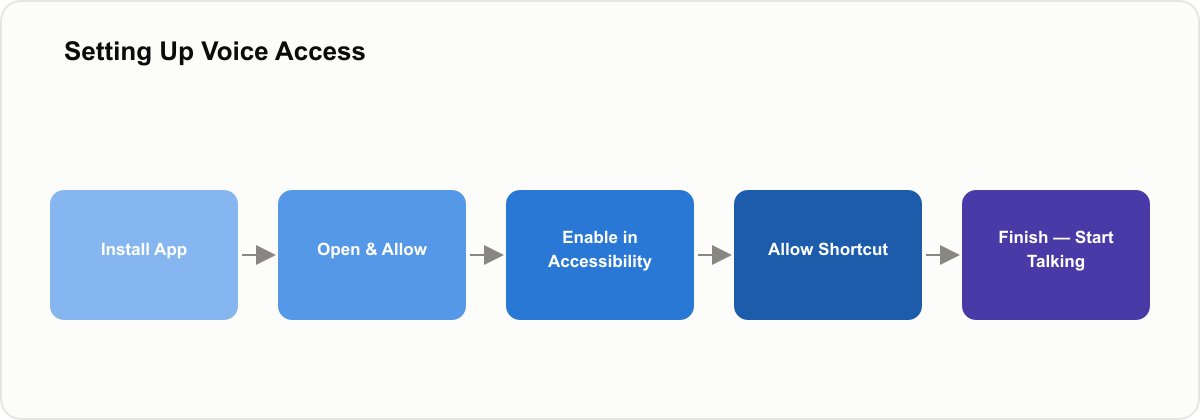
- Open the Voice Access app once it's installed
- Tap through the permission screens and confirm OK
- Go to your phone's downloaded/enabled apps in Accessibility settings and turn on Voice Access
- Tap the shortcut option and choose Allow
- Tap Finish — setup is complete
From here, your phone is listening for the Voice Access shortcut. Trigger it, and start giving commands out loud.
Commands Worth Trying First
- "Open [app name]" — launches any app on your phone
- "Go home" / "Go back" — basic navigation
- "Scroll down" / "Scroll up" — move through a page without touching it
- "Show numbers" — labels every tappable item on screen with a number, so you can say the number to tap it
- "Click [item name]" — taps a specific button or link by name
If Something's Not Working
- Make sure microphone permission is granted to Voice Access in your phone's app permissions
- Speak clearly and pause briefly between commands — it works best with short, direct phrases
- If commands aren't recognized, say "Show numbers" to see exactly what's tappable on the current screen
- Voice Access can be turned off anytime from the same Accessibility settings menu where you enabled it
Who This Is Actually Built For
Voice Access started as an accessibility tool for people with limited mobility, tremors, or conditions that make touchscreens difficult to use reliably — that's still its core purpose, and it's why Google keeps it free and actively maintained rather than treating it as a novelty feature. If you have a temporary injury, a repetitive strain condition, or a permanent motor condition that makes precise tapping hard, this is a different experience than "hands-free convenience" — it's the primary way some people use a smartphone at all.
Voice Access vs Google Assistant
These solve different problems and most people conflate them. Google Assistant answers questions, sets reminders, and handles specific commands like "set a timer for 10 minutes" — it doesn't navigate the screen for you or let you tap arbitrary buttons. Voice Access controls the interface itself: scrolling, tapping, opening any app, filling in any text field, regardless of whether that app was built with voice commands in mind. You can run both at once — Assistant for quick tasks, Voice Access for full hands-free control of whatever's on screen.
Advanced Commands Worth Learning
- "Show labels" — numbers every clickable element, useful when "Click [item name]" doesn't recognize an icon-only button with no visible text
- "Long click [item]" — triggers a long-press, useful for context menus
- "Swipe left" / "Swipe right" — for interfaces that use swipe gestures instead of buttons
- "Pause listening" / "Resume listening" — temporarily stop Voice Access from processing speech, useful mid-conversation
- "What can I say" — brings up a reference list of available commands for the current screen
Common Problems and Specific Fixes
Most Voice Access trouble comes down to one of three things: background noise, apps that don't expose their controls, or faster battery drain. Here is how to handle each.
It keeps mishearing simple commands
Background noise is the usual cause. Voice Access relies on the same speech recognition as the rest of Android, which struggles in loud environments — move somewhere quieter or wait for a lull before speaking, rather than repeating the same command louder.
Numbers don't appear on some apps
A small number of apps don't expose their interface elements in a way Android's accessibility services can read, which means Voice Access can't label them. This is rare but does happen, usually with poorly-built or heavily custom-rendered apps like games. There's no fix on your end — it's the app's implementation, not a Voice Access setting.
It drains battery faster than expected
Voice Access needs an active microphone to listen for commands, which does use more power than a phone sitting idle. Turn it off from Accessibility settings when you're not using it, rather than leaving it running continuously in the background all day.
Privacy: What Actually Happens to Your Voice Data
Voice Access processes commands to control your phone locally where possible, but like most voice-driven Google features, some processing happens on Google's servers to improve recognition accuracy. If that's a concern, Google's Activity Controls in your Google Account settings let you review and delete voice activity history, and you can turn off voice data retention entirely from the same settings — it just may reduce recognition accuracy over time since the system won't adapt to your specific speech patterns.
Real Use Cases Beyond Cooking
Driving with a phone mount and no touchscreen access, holding a baby with one arm free, texting with wet or gloved hands, using a phone in cold weather — the pattern across all of these is the same: your hands are occupied by something more urgent than your phone, and Voice Access lets the phone keep working anyway. It's also useful for anyone recovering from a hand injury or surgery, where even light phone use can be uncomfortable for a few weeks.
A Few Practical Questions
Does it work without internet? Basic navigation runs locally through Android's accessibility framework, so yes, mostly, though speech recognition accuracy leans on a connection when it has one. Offline, expect it to work a little less reliably, not to stop working. Can you use it in languages other than English? Yes, it just follows whatever your phone's system language is set to, and covers most languages Android itself supports. There's no separate setting to dig for inside the app. And will it get in the way of normal touch use? Not at all. You can still tap, swipe, and type like normal while it's running. It's just listening for commands alongside everything else, not replacing touch input. You don't need to become an accessibility expert to get value out of any of this. The setup is the same two minutes either way.
Give It a Try
Install it, run through the two-minute setup above, and try a few basic commands. It's one of those features that feels unnecessary right up until the first time your hands are full and your phone still does exactly what you say — that's usually the moment it clicks.
Frequently Asked Questions
Recommended Products & Links
Was this article helpful?
Written by
Muthu
I'm Muthu, a software engineer based in India who writes about technology, career growth, and personal finance on the side. I started Techpulzo because most content in these spaces online is either too shallow to be useful or too jargon-heavy to actually help you decide anything — so every article here starts from a real question I'd want answered myself, and tries to show the actual numbers and trade-offs instead of surface-level advice.
Comments
No comments yet. Be the first to share your thoughts!
Related Posts

Best Budget Smartphones Under ₹15,000 in 2026 — Complete Buying Guide
Poco M7 Pro 5G vs Realme P4 Lite 5G vs Samsung Galaxy M17 5G, compared on what actually matters (August 2026)
We compared the Poco M7 Pro 5G, Realme P4 Lite 5G, and Samsung Galaxy M17 5G on display, camera, battery, and software support -- current models and prices as of August 2026, with our take on which to pick.

Why "Just Learn to Code" Doesn't Get Freshers Hired in 2026
The bar moved when AI assistants started handling the work that used to prove basic competence
AI coding assistants now handle much of what used to prove a junior developer's basic competence. The actual differentiator in 2026 is judgment and debugging, not syntax fluency — here's what that means for how you prepare.

Why Your Wi-Fi Feels Slow in Certain Rooms — Router Placement and How to Extend Range
It's not your internet plan — it's brick, metal, and water fighting a radio signal
Wi-Fi dead zones aren't random — they're radio waves losing a fight against brick, metal, and water. The actual physics behind router placement, and the fixes that follow from it.

Why Your Phone Battery Degrades Over Time, and How to Slow It Down
What's actually happening inside the battery, and what genuinely slows it down
Battery degradation isn't vague "wear and tear" — it's a specific, well-understood chemical process driven mainly by heat and time spent at extreme charge levels. Here's the real mechanism and what helps.